Logs, audit, doctor, pairing & skins pages
Live log stream, audit trail with chain verify, diagnostics, device pairing, and the UI skin/theme system.
This page covers the dashboard’s inspection and operations surfaces — the screens you reach for when something looks off or when you want to brand and pair a deployment. The Inspection section holds the live Logs stream, the tamper-evident Audit trail, and the on-demand Doctor diagnostics. The Operations section holds Device Pairing and UI Skins. Two cross-page systems also live here: the approval toaster (fed by an app-wide agent-events SSE stream) and the theme / skin runtime with its language switcher.
Use Logs to watch the daemon in real time, Audit to prove nothing has been tampered with, Doctor to triage a misconfiguration, Pairing to authorize a new browser or phone, and Skins to re-theme the dashboard. Everything here lives behind the dashboard’s bearer-token auth — see Run the dashboard to pair a browser first.
Logs page (/logs)
Section titled “Logs page (/logs)”The Logs page is a live, real-time event stream from the daemon over Server-Sent Events. As the agent runs, coloured event cards appear at the bottom and auto-scroll into view. The buffer is capped at the most recent 500 entries — older cards are dropped as new ones arrive.
It subscribes to one SSE endpoint:
GET /api/daemon/logsAuthorization: Bearer rk_<token>Accept: text/event-streamOn connect, the stream first replays an initial burst of recent log lines (the last ~64 KB / ~200 lines), then live-tails new lines as they are appended. The underlying SSEClient reconnects automatically if the stream drops.
Event types
Section titled “Event types”Each event renders as a colour-coded card by type. The page recognises:
| Event type | Meaning |
|---|---|
error | An error emitted by the runtime |
warn / warning | A warning |
tool_call / tool_call_start / tool_result | Agent tool activity |
llm_request | An outbound model request |
agent_start / agent_end | Agent turn boundaries |
message / chat | Chat traffic |
log | Generic log line |
log_unavailable | The gateway could not read its log file |
A log_unavailable event means the daemon is up but cannot tail its own log file — check file permissions and the log path rather than assuming the agent is idle.
Controls
Section titled “Controls”- Pause / Resume — freeze the stream so you can read a card without it scrolling away. New events keep arriving in the background; resume to catch up.
- Auto-scroll — the panel follows the newest entry by default. Clicking anywhere inside the panel disables auto-scroll so you can inspect older cards; it re-engages when you scroll back to the bottom.
- Type filters — toggle the event-type chips to hide or show whole categories (for example, mute
tool_callnoise to focus onerrorandwarn).
Audit trail page (/audit)
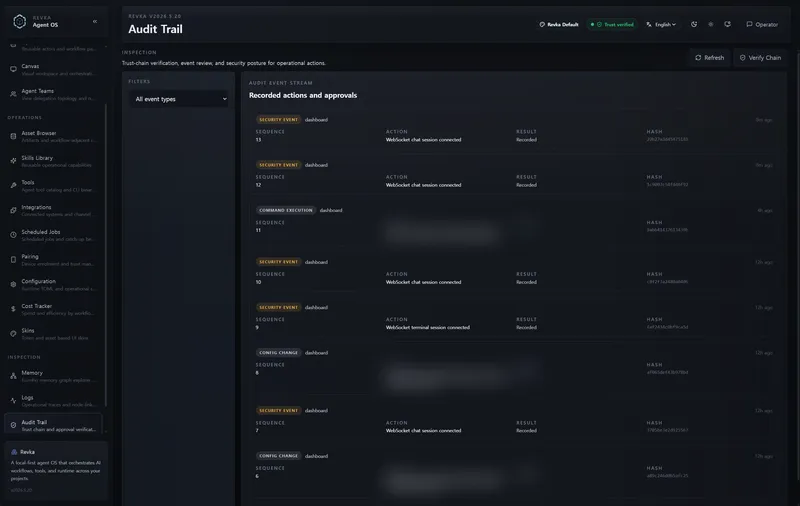
Section titled “Audit trail page (/audit)”The Audit page is the viewer for Revka’s tamper-evident Merkle hash-chain audit log. Every security-relevant event is appended to an append-only JSONL log where each entry’s entry_hash is SHA-256(prev_hash || canonical_content) and carries a monotonically increasing sequence. Modifying or deleting any entry breaks every hash after it — which is exactly what the chain verifier detects.
It is backed by two endpoints:
| Action | Method + path | Auth |
|---|---|---|
| List events | GET /api/audit?limit=100&event_type=<type> | Bearer |
| Verify chain integrity | GET /api/audit/verify | Bearer |
GET /api/audit accepts limit (default 50, max 500), an optional event_type filter, and an optional since RFC 3339 timestamp. Each event has this shape:
{ "timestamp": "2026-06-18T10:00:00Z", "event_id": "<uuid>", "event_type": "command_execution", "actor": { "channel": "telegram", "user_id": "123", "username": "@alice" }, "action": { "command": "ls -la", "risk_level": "low", "approved": false, "allowed": true }, "result": { "success": true, "exit_code": 0, "duration_ms": 15 }, "security": { "policy_violation": false, "rate_limit_remaining": 19, "sandbox_backend": "firejail" }, "sequence": 42, "prev_hash": "<64 hex>", "entry_hash": "<64 hex>", "signature": "<64 hex>"}Event types
Section titled “Event types”Filter the stream with the event-type dropdown. The supported types are:
command_execution, file_access, config_change, auth_success, auth_failure, policy_violation, and security_event.
Any event whose security.policy_violation is true is flagged with a policy-violation badge so blocked or risky actions stand out at a glance.
Verify the chain
Section titled “Verify the chain”Click Verify Chain to run the integrity check. The result renders inline with a shield icon: green when verified, red when invalid, alongside the total entry_count and an error message if the chain is broken.
GET /api/audit/verifyAuthorization: Bearer rk_<token>{ "verified": true, "entry_count": 1284 }The same check powers the Risk Rail audit badge on the Dashboard overview, which re-polls /api/audit/verify every 60 seconds and on window focus. A failed verification means the on-disk log has been altered — the most security-significant alarm the dashboard can raise.
Doctor page (/doctor)
Section titled “Doctor page (/doctor)”The Doctor page runs Revka’s built-in diagnostics suite on demand and reports a pass/warn/fail summary plus a result per check, grouped by subsystem category. It mirrors the revka doctor CLI.
Click Run Diagnostics to execute. The page posts an empty body and receives a list of results:
POST /api/doctorAuthorization: Bearer rk_<token>Content-Type: application/json
{}
{ "results": [ { "category": "network", "message": "Provider reachable", "severity": "ok" }, { "category": "memory", "message": "Kumiho round-trip slow", "severity": "warn" }, { "category": "agent", "message": "MCP server not connected", "severity": "error" } ], "summary": { "ok": 8, "warnings": 1, "errors": 1 }}Each result carries a category, a human-readable message, and a severity of ok, warn, or error. The summary panel tallies the counts. Checks typically span subsystems such as API-key/provider connectivity, memory backend, MCP connections, network, and filesystem.
Device pairing page (/pairing)
Section titled “Device pairing page (/pairing)”The Pairing page manages the devices (browsers, phones, sidecars) authorized to call the gateway. Every /api/* request carries a Authorization: Bearer rk_<token> token obtained through pairing; this page is where you mint codes for new devices, show a QR code, rotate the code, and revoke devices you no longer trust.
It uses these endpoints:
| Action | Method + path | Auth |
|---|---|---|
| List paired devices | GET /api/devices | Bearer |
| Generate a new pairing code | POST /api/pairing/initiate | Bearer |
| Revoke a device | DELETE /api/devices/{id} | Bearer |
| Read the current startup code | GET /pair/code | None |
POST /api/pairing/initiate returns a fresh code that a new device exchanges for its own token:
{ "pairing_code": "123456" }The device list (GET /api/devices) returns a DeviceInfo per entry — id, name, device_type, hardware, paired_at, last_seen, and ip_address — so you can tell paired clients apart and revoke the right one. Revoking with DELETE /api/devices/{id} invalidates that device’s bearer token immediately.
Pair a new device
Section titled “Pair a new device”- Click Pair New Device to call
/api/pairing/initiateand display a 6-digit code and a QR code. - On the new device, scan the QR (or type the code manually into the dashboard login screen).
- The new device posts the code to
POST /api/pairwith optional device metadata and receives its own persistent token. - The new device appears in the list. Revoke any device later with the trash icon.
QR payload format
Section titled “QR payload format”The QR code encodes a JSON string so a mobile client can auto-fill the host and code:
{ "v": 1, "type": "revka-pair", "host": "<origin><basePath>", "code": "<6-digit>" }host is the gateway origin plus any reverse-proxy base path, so a scanning client knows exactly where to send POST /api/pair. Rotating the code generates a fresh value immediately and invalidates the previous one.
Approval toaster & agent events
Section titled “Approval toaster & agent events”Two app-wide systems run on every dashboard page, independent of which route you are viewing.
Agent events (global SSE context)
Section titled “Agent events (global SSE context)”On startup the dashboard opens an application-level SSE subscription to the gateway’s broadcast event stream and shares it with every component:
GET /api/eventsAuthorization: Bearer rk_<token>Accept: text/event-streamEvery event carries a type and a timestamp. The channel_event type wraps its body in a { "type": "...", "payload": { ... }, "timestamp": "..." } envelope; other events (such as human_approval_request and observability events like agent_start, agent_end, tool_call, llm_request, and error) are flat objects with their fields alongside type and no payload wrapper. This stream is the backbone for real-time updates such as the approval toaster below — components subscribe to the shared context rather than each opening their own connection.
Approval toaster
Section titled “Approval toaster”When a workflow run step enters the approval_required state, the gateway broadcasts a human_approval_request on /api/events. The dashboard’s pending-approvals context collects those and pops a toast with Approve / Reject buttons — on whatever page you happen to be on. Acting on the toast resolves the gate inline:
POST /api/workflows/runs/{run_id}/approveAuthorization: Bearer rk_<token>Content-Type: application/json
{ "approved": true, "feedback": "looks good" }
Send "approved": false to reject; the optional feedback string is passed back to the run. Because the toaster is cross-page, an approval raised by a background workflow surfaces even if you are on Logs, Doctor, or Skins. A badge count also shows the number of pending approvals. The same approve/reject flow is available from the Workflows, editor & runs page; the gate lifecycle is described in Runs, approvals & checkpoints.
UI Skins page (/skins)
Section titled “UI Skins page (/skins)”The Skins page browses, activates, uploads, and deletes UI skin packages that re-theme the dashboard. A skin is a ZIP containing a revka-skin.json manifest with CSS-variable token overrides and named image asset slots, defined per light/dark mode. Two built-in skins — revka (the default neutral-graphite enterprise palette) and matrix (the green console look) — are always present and cannot be deleted.
It is backed by these routes:
| Action | Method + path | Auth |
|---|---|---|
| List installed skins | GET /api/skins | Bearer |
| Import a skin ZIP | POST /api/skins/import | Bearer |
| Delete a skin | DELETE /api/skins/{id} | Bearer |
| Serve a skin asset | GET /api/skins/{id}/assets/{path} | None (public; responses carry Cache-Control: private, max-age=300 and X-Content-Type-Options: nosniff) |
GET /api/skins returns skin summaries (id, name, version, builtin, and the parsed manifest); built-in skins carry "builtin": true and treat deletion as a no-op. Each skin card shows light/dark mode previews (a swatch with up to four colour chips). Click Activate to apply a skin; drag-and-drop a ZIP onto the page or use the upload button to install one; delete with the trash icon.
Import limits and validation
Section titled “Import limits and validation”Import (POST /api/skins/import) takes the raw ZIP body and enforces strict limits:
| Limit | Value |
|---|---|
| ZIP body | 25 MiB |
| Request timeout | 120 seconds |
| Extracted total size | 50 MiB |
| File count | 128 |
| Allowed extensions | .json, .png, .jpg, .jpeg, .webp |
The importer rejects a package that has a missing or duplicate root revka-skin.json, absolute paths, .. traversal, separators that escape the skin root, symlinks, duplicate entries, unsupported extensions, unknown modes or asset slots, the reserved IDs revka/matrix, an invalid ID, manifest asset references missing from the ZIP, or any JavaScript/CSS/HTML/SVG/remote-URL content. Imported skins are stored under {workspace_dir}/skins/{skin_id}/.
UI skins reference
Section titled “UI skins reference”revka-skin.json manifest
Section titled “revka-skin.json manifest”The manifest declares an id, display name, version, schemaVersion (must be 1), and a modes object with light, dark, or both. Each mode may define tokens (CSS-variable overrides), assets (slot → relative path), and an optional preview image.
revka-skin.json ← manifest at ZIP rootassets/ logo.png avatar.webp hero.jpg{ "schemaVersion": 1, "id": "rabbit_garden", "name": "Rabbit Garden", "version": "1.0.0", "modes": { "light": { "tokens": { "--revka-bg-base": "#f7fbf2", "--revka-bg-surface": "#ffffff", "--revka-text-primary": "#142018", "--revka-signal-live": "#4e9f5b", "--revka-radius-md": "14px" }, "assets": { "brandLogo": "assets/logo.png", "operatorAvatar": "assets/avatar.webp", "dashboardHero": "assets/hero.jpg" }, "preview": "assets/hero.jpg" }, "dark": { "tokens": { "--revka-bg-base": "#090607", "--revka-text-primary": "#f6ecef" } } }}| Field | Purpose |
|---|---|
schemaVersion | Must be 1 |
id | Storage ID; lowercase letters, numbers, -, and _ only |
name | Display name |
version | Skin package version |
modes | Object containing light, dark, or both |
Token contract
Section titled “Token contract”Authored tokens must use the canonical --revka-* namespace. The --pc-* compatibility tokens are generated by the frontend bridge and must not be authored directly. Accepted values are colours (hex, rgb(), rgba(), hsl(), hsla()) and bounded CSS lengths (px, rem, em, %) for radius/spacing/font-size-like tokens. Rejected in v1: url(...), var(...), expression(...), JavaScript-like URLs, shadow tokens, background-image tokens, and arbitrary CSS.
| Token | Use |
|---|---|
--revka-bg-base | page background |
--revka-bg-shell | sidebar / shell surface |
--revka-bg-surface | cards and contained surfaces |
--revka-bg-panel | translucent panel background |
--revka-border-soft / --revka-border-strong | low-emphasis / active borders |
--revka-text-primary / --revka-text-secondary / --revka-text-muted | text emphasis levels |
--revka-signal-live / --revka-signal-network | primary / secondary accent |
--revka-radius-sm / --revka-radius-md / --revka-radius-lg | corner radii |
Asset slots
Section titled “Asset slots”Asset values are relative paths under assets/ (remote URLs, absolute paths, traversal, and SVG are rejected). The full slot set:
| Slot | UI use |
|---|---|
brandLogo | sidebar / header brand image |
operatorAvatar | operator / agent avatar surfaces |
dashboardHero | dashboard banner image |
dashboardShowcase | large dashboard visual panel (character / scene / product art) |
dashboardAccent | small dashboard showcase accent prop or emblem |
shellTexture | subtle shell background texture |
panelDecoration | subtle panel corner decoration |
pageBackdrop | full application backdrop behind the shell |
sidebarBackdrop | sidebar background art or texture |
headerBackdrop | top header command-band background art |
graphBackdrop | workflow / team graph canvas background |
metricDecoration | overview metric card decoration |
runCardDecoration | selected-run / run-summary decoration |
stepCardDecoration | selected-step / selected-node decoration |
timelineDecoration | priority timeline decoration |
riskRailDecoration | risk rail card decoration |
agentRailDecoration | agent rail card decoration |
commandBandDecoration | command band card decoration |
recentRunsDecoration | recent runs rail decoration |
statusRunningBadge | running status badge art |
statusSuccessBadge | completed / success status badge art |
statusFailedBadge | failed status badge art |
statusPendingBadge | pending / blocked status badge art |
statusSkippedBadge | skipped status badge art |
Theme / skin system
Section titled “Theme / skin system”Underneath the Skins page is a CSS-variable-based theme runtime exposed through a ThemeContext. It provides a dark/light mode toggle plus skin management to every component:
resolvedTheme— the effective light/dark mode currently applied.toggleMode()— switch between light and dark.setSkin(id)— activate an installed skin (built-in or imported).deleteSkin(id)— remove an imported skin.getSkinAsset(slotName)— resolve a slot (for examplebrandLogo) to its served URL for the active skin and mode, falling back to the built-in asset when a slot is unset.
Both the active skin and the mode persist in localStorage and are re-applied on the next load, so a branded deployment stays branded across reloads. The built-in light/dark themes always exist independently of any uploaded skin package; uploaded skins layer their token and asset overrides on top.
Language switcher (i18n)
Section titled “Language switcher (i18n)”The dashboard is fully internationalised. Every UI string flows through a useT() hook — t(key) for plain strings and tpl(key, vars) for interpolated ones — with the supported locales defined in the i18n module. A language switcher in the layout header changes the active locale at runtime, and the choice is persisted in localStorage so it survives page reloads. Switching locale does not affect agent output or stored data; it only re-renders the dashboard chrome.